
By using this site, you agree to the Privacy Policy and Terms of Use.
Accept
SkillieSkillie
  • Azure for Beginners
  • Azure Infrastructure & Architecture
  • Azure DevOps & CI/CD
  • Azure Platform Services
  • Uncategorized
Reading: Create Azure storage accounts using powershell | Skillie blogs
Share
Aa
SkillieSkillie
Aa
Search
  • Home
  • Azure for Beginners
  • Azure Infrastructure & Architecture
  • Azure DevOps & CI/CD
  • Azure Platform Services
  • Uncategorized
Have an existing account? Sign In
Follow US
© Skillie.co.in. All Rights Reserved.
Skillie > Azure Infrastructure & Architecture > Create Azure storage accounts using powershell | Skillie blogs
Azure Infrastructure & Architecture

Create Azure storage accounts using powershell | Skillie blogs

Skillie
Last updated: 2026/02/22 at 5:35 PM
Skillie
Share
SHARE

Here, we will see how to automate the creation of azure storage accounts using powershell. We are using Cloud Shell. The intent is to understand the script.

Contents
Pre Requisites to create Azure storage accountsScript to create multiple azure storage accountsUsing for loop to create azure storage accounts.Explanation:Output:

Pre Requisites to create Azure storage accounts

  • An Azure account with elevated privileges.
  • Install Azure PowerShell Modules from here.
  • Otherwise, use Azure CloudShell from Azure Portal.

Script to create multiple azure storage accounts

Let us define the needed variables first.

$resourceGroupName = "AZ-140"
$location = "East US"

Using for loop to create azure storage accounts.

This loop will create 10 similar storage accounts

for ($i = 1; $i -le 10; $i++) {
$storageAccountName = “strgdemoacc$i”

$storageAccount = New-AzStorageAccount -ResourceGroupName $resourceGroupName -Name $storageAccountName -Location $location -SkuName Standard_LRS

}

Explanation:

  • For loop will do three things. First, it will define all the storage account names here. $storageAccountName = “strgdemoacc$i”
  • Second, $storageAccount = New-AzStorageAccount -ResourceGroupName $resourceGroupName -Name $storageAccountName -Location $location -SkuName Standard_LRS, this command will create all storage accounts defined in the first bullet.
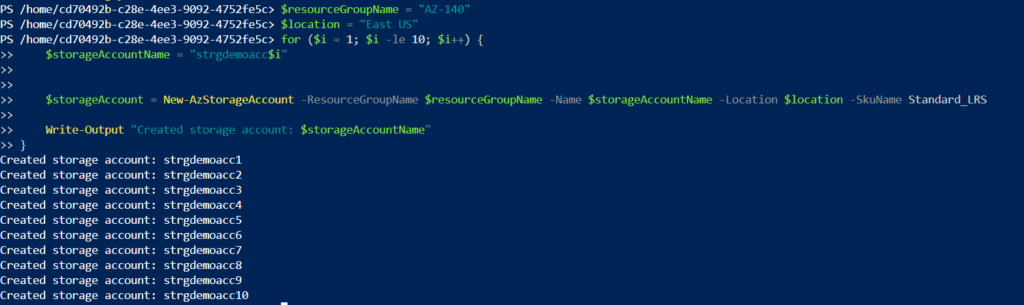
  • Once the loop does its job, it will output a message stating “Created storage account: $storageAccountName” 10 times with the storage account name created.
  • This is a basic exercise to create multiple azure storage accounts ,

Output:
Skillie December 19, 2024
Share this Article
Facebook Twitter Copy Link Print
Share
Previous Article What is a Malware? What is a Malware?
Next Article Azure policy questions and answers
Leave a comment

Leave a Reply Cancel reply

Your email address will not be published. Required fields are marked *

SKILLIE SKILLIE
  • About Us
  • Contact Us
  • Privacy Policy
  • Terms Of Use
SKILLIE SKILLIE
  • About Us
  • Contact Us
  • Privacy Policy
  • Terms of use

© Skillie.co.in. All Rights Reserved.

Removed from reading list

Undo
Welcome Back!

Sign in to your account

Lost your password?